Using a working copy
This page lists best practices that you need to follow when checking out and using a working copy.
You should normally always follow these guidelines. Deviating from these guidelines is possible in advanced cases if you are an expert user and know why you are ignoring a particular guideline.
Do not check out the whole repository
Normally, if your repository uses branches, you should not check out the entire repository with all its branches (using the URL that points to the repository’s root directory) to your local working copy.
When checking out a working copy, check out just the directory of one
specific branch (e.g. trunk or a particular feature branch). To do that, use
a URL that points to trunk or to the directory of a specific branch or tag.
For example:
C:\Users\Alex> svn checkout https://svn.example.com/MyRepo/trunk my_work_dir
Or:
C:\Users\Alex> svn checkout https://svn.example.com/MyRepo/branches/my_feature another_work_dir
In TortoiseSVN
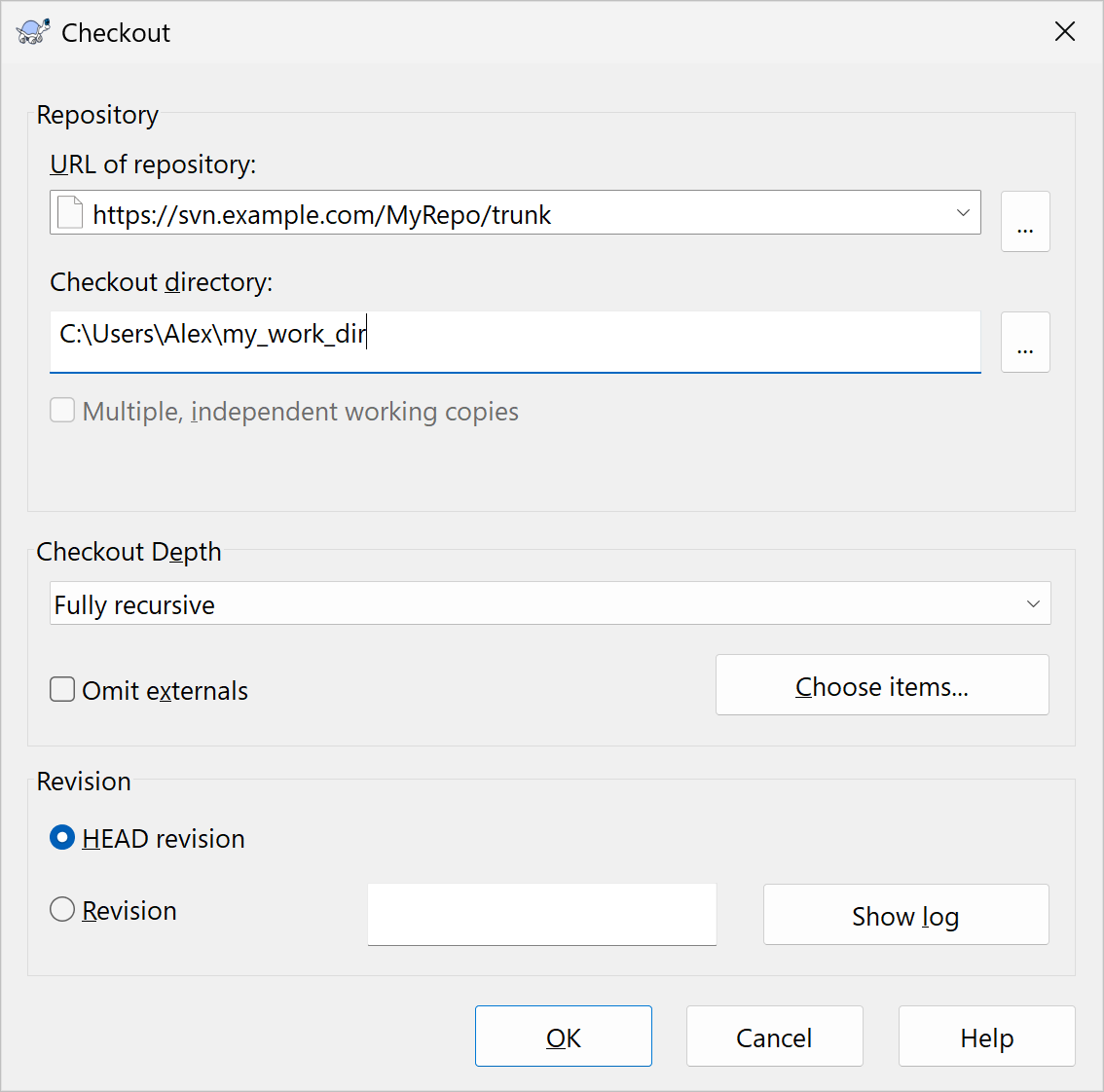
Similarly, in TortoiseSVN, run the TortoiseSVN | Checkout command from the
Windows File Explorer context menu. In the URL of repository field, specify
the URL that points to the trunk directory or to the directory of a specific
branch or tag. And in the Checkout directory, specify the desired
location for the new working copy.
Do not switch subtrees in the working copy
Normally, at any moment of time, your entire working copy should reflect one particular branch. To correctly switch a working copy to another branch, run the switch command from the root of your working copy.
You must not use the switch command to switch some parts (subdirectories or files) in your working copy to a branch different from the rest of the working copy (different from the working copy’s root).
This is important when you do a merge into your working copy. If you switch only a part of your working copy to a different branch (while the rest of your working copy is on another branch) and do a merge into this working copy, then the working copy’s root and the switched paths will get separate mergeinfo updates that are known as subtree mergeinfo, because in fact you did a merge into parts of several branches.
In other cases having switched subtrees may also lead to a very weird commit that modifies several branches at once.
Be aware that switching preserves your uncommitted changes
In general, before switching you should check whether you have any uncommitted changes in your working copy.
The reason for this is that your Subversion client will allow you to switch even when your working copy has uncommitted changes, and will preserve them as uncommitted changes during the switch. In this case, your uncommitted changes might overlap with the changes that are received from the switch. If they overlap, this will be displayed as a conflict that you need to resolve.
One scenario where switching with uncommitted changes is normal is when you have already made changes in your working copy, but want to commit these changes to a new branch that splits off from the branch that your working copy is currently on. In this particular case, you can create a new branch and switch to it. The changes from your working copy will be cleanly carried over without any conflicts, because there will not be any incoming changes received from the switch.
Always tell Subversion when you rename or move an item in the working copy
Always use the svn move command when you want to rename or move versioned
files in your working copy. For example, you might rename README.txt in the
working copy as follows:
C:\Users\Alex\my_work_dir> svn move README.txt IMPORTANT_README.txt
Or, for example, you might move README.txt from the branch’s root into an
existing subdir directory as follows:
C:\Users\Alex\my_work_dir> svn move README.txt subdir/
Modern Subversion is able to use this information later to correctly merge files that have been moved or renamed on different branches or in different working copies. Subversion does not look at the contents of files to automatically detect renaming or relocation.
In TortoiseSVN
If you are using TortoiseSVN:
- The equivalent of
svn movefor simple renaming is the dedicated TortoiseSVN | Rename command. - The equivalent of
svn movefor changing the location of an item in your working copy is as follows:- Select the files or directories you want to move.
- Right-click and drag them to a desired new location inside the working copy.
- Release the right mouse button and in the context menu click SVN Move versioned item(s) here.