Merging a branch
This page lists best practices that you need to follow when using the merge operation. These practices are relevant for all types of merges, except when stated otherwise in the particular guideline below.
You should normally always follow these guidelines. Deviating from these guidelines is possible in advanced cases if you are an expert user and know why you are ignoring a particular guideline.
Merge into a clean and updated working copy
Before a merge into a working copy, ensure the following:
-
The working copy must be clean. That is, it must not contain any uncommitted local changes. Running the
svn statusoperation from the root of your working copy must print nothing. If there are any uncommitted local changes, commit them first. -
The working copy must be updated. Run
svn updatefrom the root of your working copy, to ensure that all the files in the working copy are updated to the latest revision (the latest state of this branch).
In TortoiseSVN
In TortoiseSVN, run the Check for modifications command from the root of your working copy, to make sure that the working copy does not contain any local uncommitted changes. If there are any uncommitted local changes, commit them first. Similarly, you need to run the Update command from the root of your working copy.
Merge the source branch in full
You should always merge the whole source branch into the target branch, and should not merge just a part of the source branch. This best practice is known as merging from and to the roots of branches. The goal of this guideline is to avoid a partial (subtree) merge that would record subtree mergeinfo.
For example, suppose that just one subdirectory (e.g. "^/trunk/tests") or
even just one file was modified on the trunk. To sync that change into your
feature branch, you should still merge the whole trunk directory into the
root of your working copy:
C:\Users\Alex\my_work_dir> svn merge "^/trunk"
Note that this also assumes that you properly checked out the working copy, so
that the root directory of the working copy (e.g. C:\Users\Alex\my_work_dir)
reflects the root directory of the target branch (e.g.
"^/branches/my_feature").
In TortoiseSVN
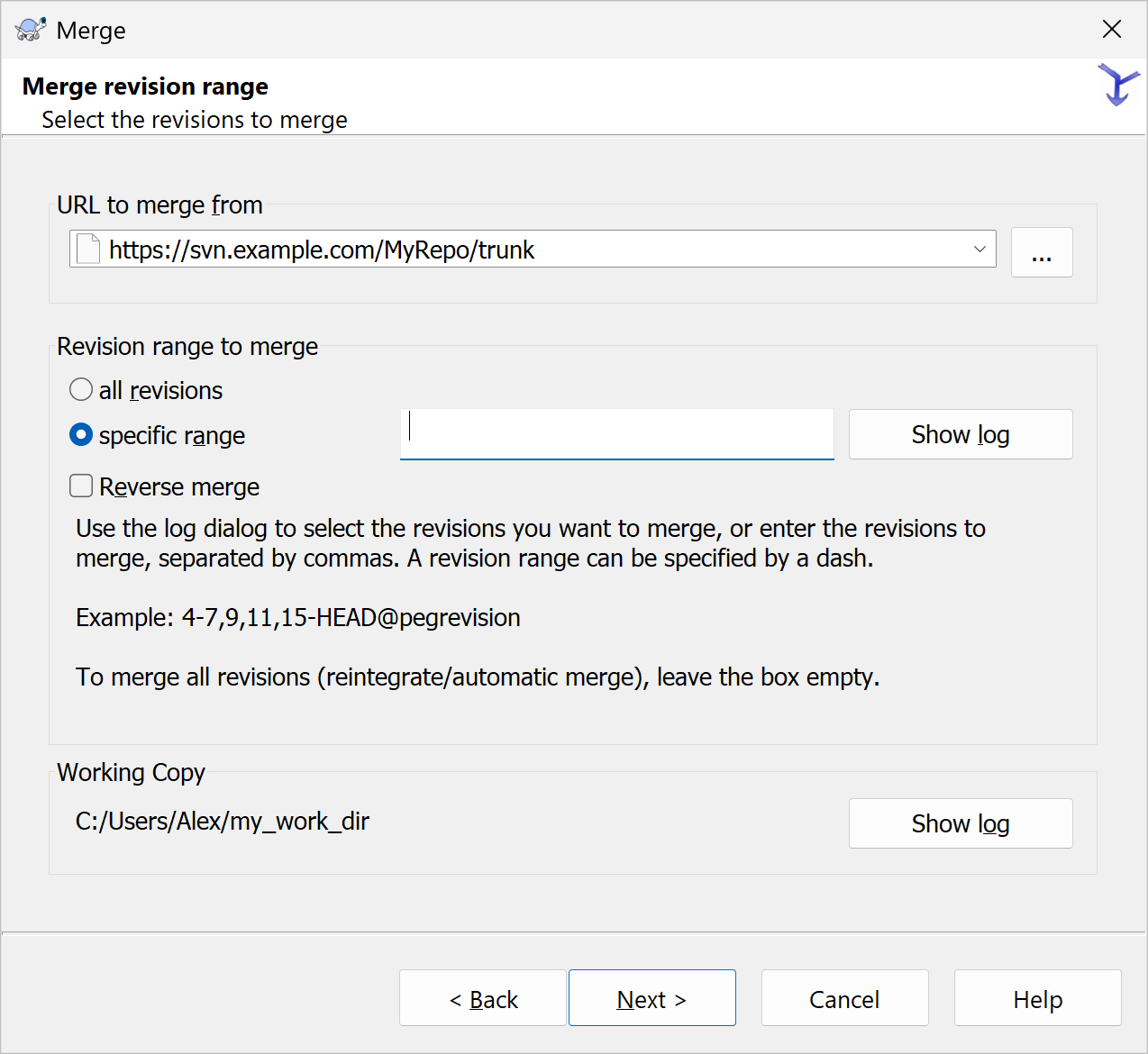
Similarly, in TortoiseSVN, run the Merge command from the root of your
working copy. The URL to merge from should be the URL of the root
directory of a source branch. For example, the URL to merge from may be
https://svn.example.com/MyRepo/trunk.
Make sure you have sufficient repository permissions
To be able to fully merge two branches, you need the following access permissions to the contents of the repository:
-
Read/Write access to all of the target branch. This ensures that when checking out or switching to the target branch, you can get all of its contents (to its full depth) into your working copy. The Write access also ensures that you will be able to commit the merged changes to the target branch.
-
At least Read access to all of the source branch. This ensures that you can merge the whole source branch (to its full depth) into your working copy.
If there are changes eligible for merging at some repository path (subdirectory or file) inside the source branch, but they can’t be merged due to access restrictions, the merge skips that path (notifying you about that) and that path’s changes don’t get merged. This results in a partial (subtree) merge, which may lead to conflicts later.
For example, this can occur if the target path that should receive changes in the working copy is missing (i.e. the working copy does not reflect the whole target branch). Or because you do not have Read access to any paths (subdirectories or files) inside the source branch that contain eligible changes to be merged.
Avoid the ‘2-URL merge’ also called ‘Merge two different trees’
It is recommended that you avoid the fully manual variant of the merge command known as a 2-URL merge, where you specify two URLs instead of one (in addition to an optional working copy target). Although the 2-URL variant gives you the fullest control over what to compare to generate the incoming changes, it introduces the greatest potential for user error.
Instead, in most cases, prefer using the automatic (sync or reintegrate) merge, where you specify just one URL (the URL of the source branch) in the merge command and do not specify the revisions to merge. In more advanced cases, use a single-URL cherrypick merge.
In TortoiseSVN
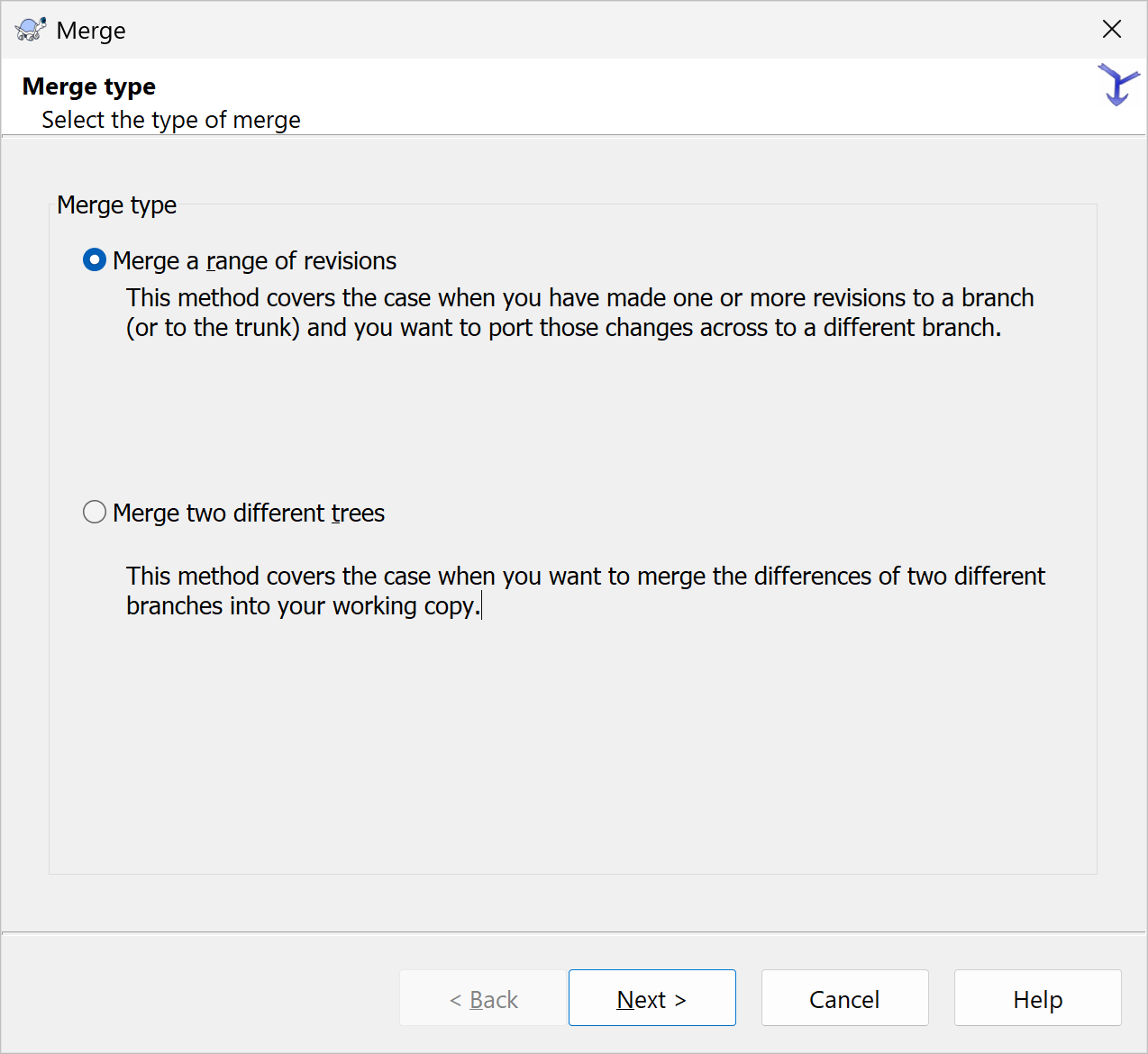
In TortoiseSVN, this guideline means that you should normally avoid the fully manual 2-URL variant of the merge command, which is called ‘Merge two different trees’ in TortoiseSVN.
Instead, prefer using the ‘Merge a range of revisions’ option. It lets you perform an automatic (sync or reintegrate) merge if you leave the specific range option selected and the field next to it empty, or you select the all revisions option. In most cases you should prefer such an automatic merge.
In more advanced cases, the ‘Merge a range of revisions’ option also lets you perform a single-URL cherrypick merge, if you explicitly specify the revisions to merge from the source branch.
Never resolve a conflict during a reintegrate merge
If any conflicts occur during a reintegrate merge, do not try to resolve them. Instead, cancel the merge by reverting all the changes that it made.
To cancel the merge (to revert all changes), run the following command from the
root directory of the working copy: svn revert --recursive .
Switch to the feature branch that you tried to reintegrate, and
sync that feature
branch with the trunk once more. Typically, a conflict during a reintegrate merge
happens if you are trying to reintegrate a feature branch that is not fully synced
with the trunk. This occurs if someone has committed newer changes to the trunk
after your last sync of that feature branch. Resolve conflicts during the sync on the
feature branch. Then, repeat the reintegrate merge.
No conflicts should occur during a successful reintegrate merge.
Do not revert the automatic changes in the svn:mergeinfo property
After merging a different branch into your working copy, do not revert the
automatic changes that Subversion has made to the
svn:mergeinfo property on the root
of the working copy. The only exception when you should revert this change, is
if you are completely canceling the merge (reverting all the changes that the
merge made).
Seeing the automatically modified mergeinfo
After merging a different branch into your working copy and before you commit
the merged changes, you can see the automatic change in svn:mergeinfo as a
property-only change on the target path of the merge (on the root directory of
your working copy).
For example, consider the following output when running svn status at the
root of your working copy:
C:\Users\Alex\my_work_dir> svn status
 M      .
M       README.txt
In this output, the dot . on the first line denotes the current directory
my_work_dir (the root of the working copy), while the M on the same first
line in the second column indicates a property modification.
In TortoiseSVN
In the TortoiseSVN GUI you can see this as a property change on the root of your working copy:

To view local uncommitted changes in the working copy with TortoiseSVN, right-click in your working copy’s root directory and select TortoiseSVN | Check for modifications.
Do not make unrelated changes during a merge
A merge commit should contain only the changes made by the merge operation
itself or changes that you made to resolve conflicts. You should not introduce
unrelated changes into the working copy during a merge. For example, if after
merging you noticed a typo, you should not fix it in the merge commit. You can
correct it later, for example by a separate commit to your feature branch or to
the trunk.
Commit the merge in full
Commit all the merged changes that remain after you resolve any conflicts. This
guideline ensures that you commit the merged changes together with the
mergeinfo describing the merge. If
you do not commit the target path into which this merge was done (normally,
the working copy’s root directory) and which has its svn:mergeinfo property
modified as a result, this modified mergeinfo would not be committed at all.
When using the command-line client, this guideline simply means that you should commit from the root of the working copy and should not explicitly specify individual items that you want to commit:
C:\Users\Alex\my_work_dir> svn commit -m "On my_feature: synced the branch with trunk."
When making a non-merge commit (that does not commit the results of a merge), it is common and normal to do a partial commit, selectively committing only some of the local changes from the working copy. When committing a merge, do not make partial commits like the following:
C:\Users\Alex\my_work_dir> svn commit README.txt -m "Bad practice: this does not commit the branch's root with its modified mergeinfo."
In TortoiseSVN
When using TortoiseSVN, it means that you should commit from the root of the working copy and you must not clear any automatically selected check marks, which show versioned items modified by the merge.
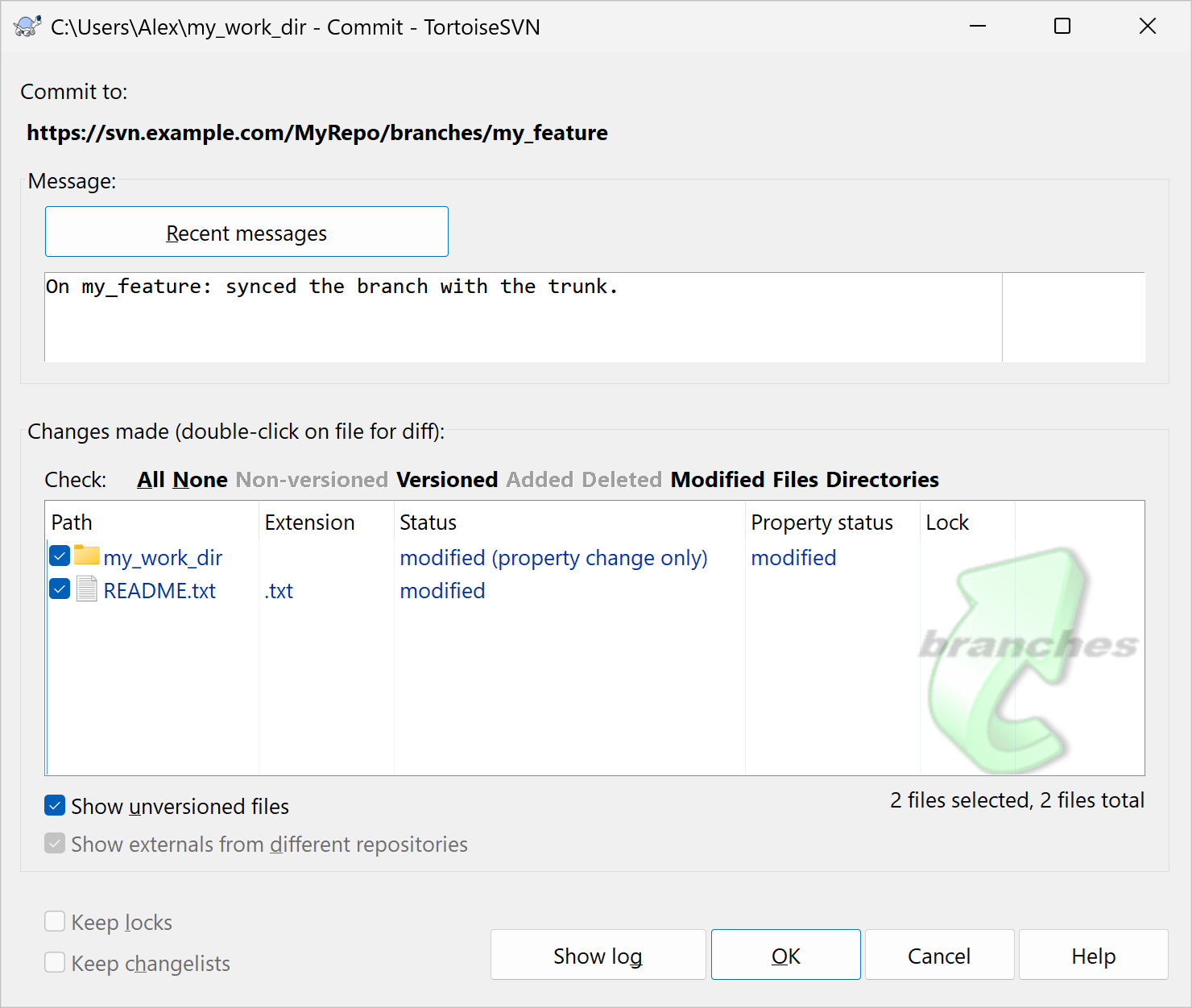
In TortoiseSVN, make sure that you commit only the versioned files modified by the merge, they are automatically selected and their Status may state modified, added or deleted. If the working copy contains unselected files with the non-versioned Status, you should not manually select them and should not include them in the commit.
For example non-versioned files may be temporary files created by your text editor or by your Integrated Development Environment (IDE).
The feature branch should be fully synced before reintegration
Before reintegrating a feature branch into the trunk, the feature branch
should be fully synced with the trunk. This means that right before a
reintegrate merge of a feature branch into trunk, you should do the final
sync merge of changes from trunk into the feature branch.
It allows you to resolve any potential conflicts between trunk and the
feature branch while you are still on the feature branch, and lets you commit
this conflict resolution to the feature branch. This ensures that this feature
branch can be cleanly merged into the trunk without any conflicts, unless the
trunk has already received newer commits after the feature branch’s latest
sync.
Always use merging to transfer changes between branches
Since a merge brings in changes from another branch, you normally should not recreate the same changes on two branches. This is because when you merge one of these branches into the other, such changes become overlapping changes that occurred independently on these branches. You might need to resolve them as conflicts.
For example, if a new file was added to version control on trunk, the typical
way to bring it to your feature branch is by syncing the feature branch with the
trunk. Typically, you should not manually paste and add this same file to
version control again on your feature branch.
Similarly, if a new paragraph was added to a text file on trunk, you can
receive it to your feature branch via a sync merge. Typically, you should not
recreate the same change again from scratch on your feature branch.
You might want or need to make such duplicate changes occasionally, but you
should not do that as your default workflow. If you aren’t ready to absorb all
changes from trunk to your feature branch, consider using the more granular
merging method: a
cherrypick
merge.
Cursory review is sufficient for a sync merge
After performing a sync merge from trunk into a feature branch, it is a
common practice to have only a minimal cursory review of the merged changes in
the working copy, except for those that caused conflicts.
Subversion will merge changes only if they can be unambiguously merged. You
can generally trust that the changes got applied to the correct location.
Subversion will merge changes only to the exactly matching path in the target
branch. If files within the source or the target branch have been moved or
renamed, Subversion detects such moves only by taking into account the historic
results of the svn move operation (which is committed as a pair of tracked
tree change operations: a tracked copy and a tracked delete of the same item in
the same revision). Subversion does not use any heuristics based on the contents
of files to detect file renaming or to move files.
Thorough review is needed for a reintegrate merge
After doing a reintegrate merge of a feature branch into the working copy of
trunk, the best practice is to do a thorough review of the changes that have
been merged to the working copy.
If you are not happy with any of the changes coming from this reintegrate merge, you should not fix them directly in the commit containing the reintegrate merge (see Avoid making unrelated changes in the merge commit above).
In this case, you should normally cancel the merge by reverting all the changes that it made.
To cancel the merge (to revert all changes), run the following command from the
root directory of the working copy: svn revert --recursive .
The unsatisfactory changes should be fixed on the feature branch. Then you can repeat the reintegrate merge.