Using command-line interface
While you can perform common Docker operations directly in VisualDock Server Manager, some advanced container interactions require using the command-line interface (CLI).
VisualDock Server provides a convenient way to run such commands:
- The installation package includes the Docker client executable (
docker.exe). - VisualDock Server Manager has a dedicated shell to execute the commands.
- All objects in VisualDock Server Manager have a
Copy IDcommand to simplify referencing them from the command shell. - Operations like
New Containeroutput an equivalent Docker CLI command that can be customized if necessary. - VisualDock Server Manager respects external modifications and automatically displays the up-to-date state, making the command shell usage seamless.
To familiarize yourself with Docker CLI commands, refer to the full command-line reference.
How to use the integrated command shell
In this example, we will run the official hello-world
Docker container using the command shell in VisualDock Server Manager:
-
Open VisualDock Server Manager.
-
Click Action → Start Command Shell.
-
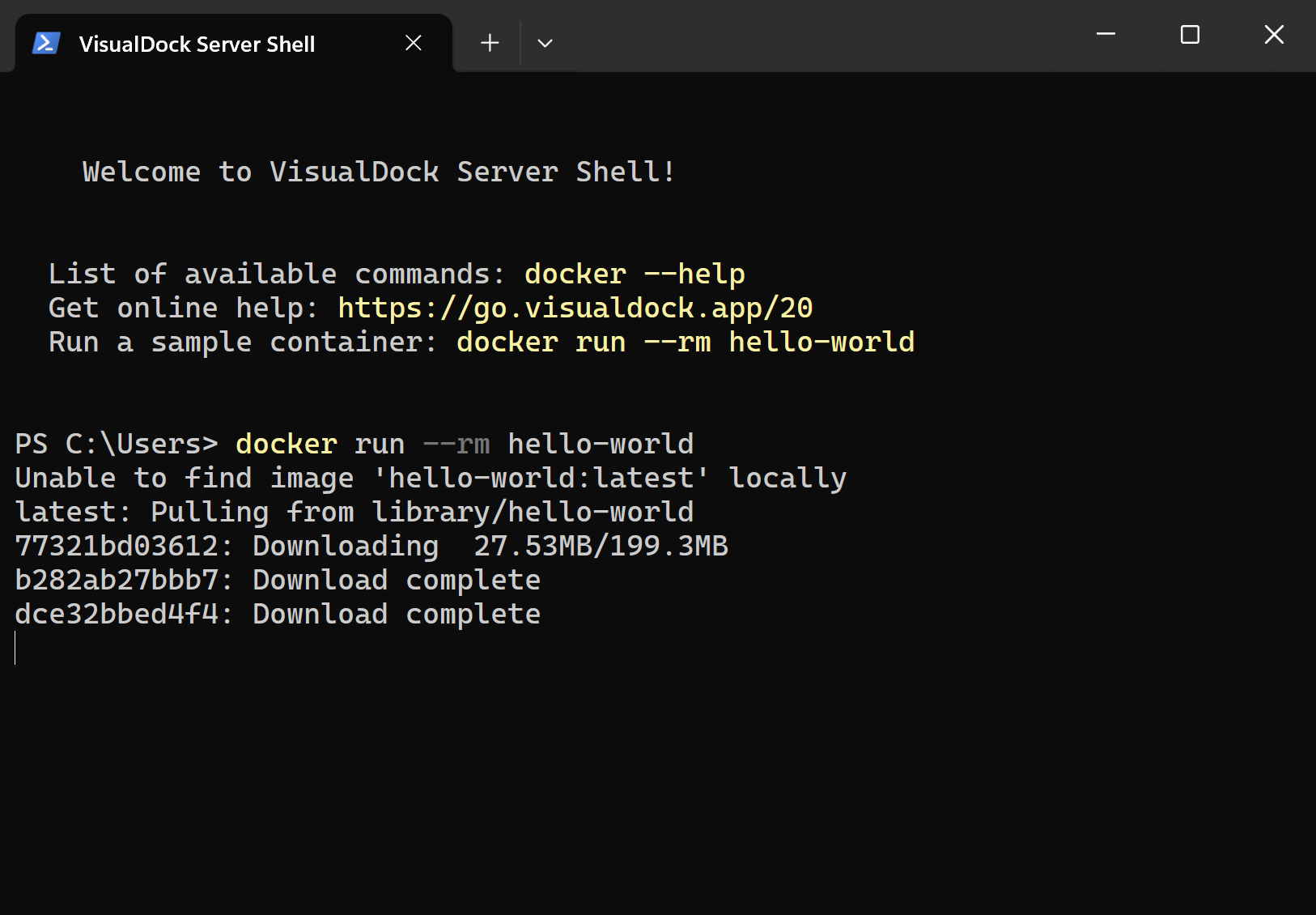
Type
docker run --rm hello-worldand press Enter.Using the
--rmoption here is recommended to automatically remove the container when it exits. -
The container image should download and run on your host machine.
-
You should see the following output produced by the container:
Hello from Docker!
This message shows that your installation appears to be working correctly.

To generate this message, Docker took the following steps:
 1. The Docker client contacted the Docker daemon.
 2. The Docker daemon pulled the "hello-world" image from the Docker Hub.
    (windows-amd64, nanoserver-ltsc2025)
 3. The Docker daemon created a new container from that image which runs the
    executable that produces the output you are currently reading.
 4. The Docker daemon streamed that output to the Docker client, which sent it
    to your terminal.

To try something more ambitious, you can run a Windows Server container with:
 PS C:\> docker run -it mcr.microsoft.com/windows/servercore:ltsc2025 powershell
…